
Introduction: Why a Reliable IPTV Troubleshooting Guide Matters
Streaming television over the internet has become one of the most widely adopted ways to access digital entertainment worldwide. As more users shift from traditional cable and satellite systems to IPTV-based solutions, the need for clear and practical troubleshooting guidance has become increasingly important. IPTV services depend heavily on internet infrastructure, device compatibility, and application performance, which means users may occasionally face technical issues such as buffering, login failures, or playback interruptions. Platforms like “King TV” are part of this growing IPTV ecosystem, and like any internet-based service, they require proper setup and occasional optimization to function smoothly. Whether you are new to IPTV or an experienced user, understanding how to identify and resolve common issues is essential for maintaining a stable viewing experience. This guide provides a structured approach to troubleshooting, setup, and optimization so users can handle most issues independently and improve overall streaming performance.
Understanding King TV: What You Need Before You Start
Before attempting to fix any issues, it is important to understand how IPTV services like King TV operate and what conditions are required for stable performance. IPTV relies entirely on internet connectivity, meaning the quality of your experience is directly influenced by your network strength, device capability, and configuration. Unlike traditional broadcasting systems, IPTV does not use satellite or cable signals but instead streams content in real time over broadband connections. This makes it flexible but also sensitive to network instability and incorrect setup.
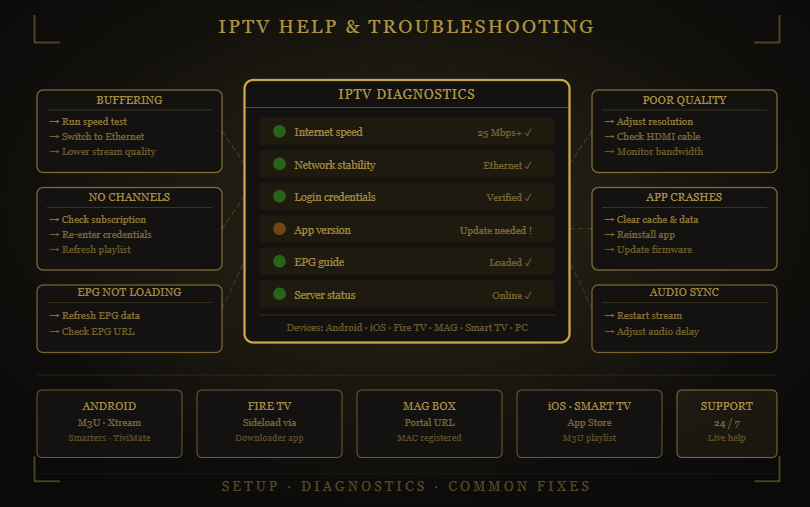
Internet Speed Requirements
Internet speed is one of the most critical factors in IPTV performance. For smooth playback, a minimum of 5 Mbps is generally required for SD content, around 10–15 Mbps for HD streaming, and at least 25 Mbps for 4K content. These values assume a single active stream; multiple users on the same network will require additional bandwidth.
Device Compatibility
King TV supports a wide range of devices including Android phones, iOS devices, smart TVs, Amazon Fire Stick, MAG boxes, Windows PCs, and Mac systems. However, compatibility depends on using a supported IPTV player application, so users must ensure both hardware and software requirements are met.
Network Stability
Beyond speed, stability plays a crucial role in IPTV performance. A consistent 15 Mbps connection often performs better than a fluctuating 50 Mbps connection. Wired ethernet connections are generally more reliable than Wi-Fi and significantly reduce buffering and interruptions.
Setting Up King TV: A Step-by-Step Overview
Proper installation is essential for avoiding many common IPTV issues. Incorrect setup is often the root cause of playback errors, login failures, or missing channels.
Android Devices and Android TV Boxes
Android is one of the most widely used platforms for IPTV. Users typically install a third-party IPTV player such as IPTV Smarters or TiviMate, then enter login credentials provided by the service. These credentials usually include an M3U link or Xtream Codes details. After configuration, the application loads the channel list, which may take a few minutes depending on its size.
Amazon Fire Stick Setup
Fire Stick users must enable installation from unknown sources before sideloading an IPTV player via the Downloader app. Once installed, the setup process is similar to Android devices, requiring playlist or login credentials to access content.
MAG Box Configuration
MAG devices are designed specifically for IPTV use. Setup involves entering a portal URL and ensuring the device MAC address is registered with the service. This method provides a more direct connection without third-party apps.
iOS Devices
On iPhone or iPad, IPTV apps available on the App Store are used to enter M3U or Xtream Codes credentials. Once configured, channels load within the app interface for streaming.
The Most Common King TV Problems and How to Fix Them
Buffering and Playback Freezing
Buffering is one of the most frequent IPTV issues and is usually related to network instability or insufficient bandwidth.
Check internet performance: A speed test can confirm whether your connection meets streaming requirements.
Switch to ethernet: Wired connections provide more stable performance than Wi-Fi.
Reduce network usage: Limiting other devices using the same connection can improve stream stability.
Lower stream quality: Switching from 4K to HD or SD reduces bandwidth demand.
Clear app cache: Removing temporary data can improve application responsiveness.
Restart router: Refreshing your network often resolves temporary connectivity issues.
Channels Not Loading or Missing
When channels fail to load, the issue is often related to authentication or playlist errors.
Verify subscription status: Ensure the service is active and not expired.
Re-enter login details: Incorrect credentials are a common cause of access failure.
Refresh playlist: Updating the channel list can resolve outdated data issues.
Check server status: Temporary maintenance may affect availability.
Test another device: Helps determine whether the issue is device-specific.
Poor Video Quality or Pixelation
Low-quality video is often linked to resolution settings or network limitations.
Adjust resolution settings: Ensure the highest available quality is selected.
Check HDMI connections: Faulty cables can affect display quality.
Verify TV settings: Matching resolution settings improves clarity.
Monitor bandwidth: Insufficient speed may force automatic quality reduction.
Audio and Video Sync Issues
When sound does not match visuals, playback synchronization is disrupted.
Restart stream: Often resolves temporary sync errors.
Adjust audio delay: Many IPTV apps allow manual synchronization settings.
Update application: New versions often fix playback bugs.
Try another player: Some issues are player-specific rather than service-related.
App Crashes or Freezing
Application instability can result from software or device limitations.
Force restart app: Clears temporary system errors.
Clear cache and data: Removes corrupted temporary files.
Check storage space: Low memory can affect performance.
Reinstall app: Fresh installation often resolves persistent issues.
Update firmware: Ensures device compatibility with current software versions.
EPG Not Loading
The Electronic Program Guide may fail due to configuration or data issues.
Manually refresh EPG: Forces updated program data download.
Check EPG URL: Incorrect links can prevent data loading.
Allow loading time: Large channel lists require time to fully populate.
Adjust update settings: Scheduled updates improve consistency.
Optimizing Your King TV Experience
Improving Network Performance
A stable home network is essential for consistent IPTV performance. Positioning routers correctly, using 5GHz Wi-Fi, and minimizing interference can significantly improve streaming quality.
Using VPN Services Wisely
VPNs can help bypass throttling and improve privacy, but they may also introduce latency if not configured properly. Choosing nearby servers helps maintain stable performance.
Selecting the Right IPTV Player
Different IPTV applications offer different levels of performance and stability. Some prioritize interface design, while others focus on EPG accuracy or playback optimization. Testing multiple players can help identify the most stable option.
Keeping Software Updated
Regular updates for IPTV apps, devices, and firmware ensure compatibility and reduce the risk of bugs or performance issues.
Contacting Support Effectively
When troubleshooting does not resolve the issue, contacting support becomes necessary. Providing clear details such as device type, error messages, and steps already taken helps speed up resolution. The more specific the information, the faster the support team can identify the problem.
Frequently Asked Questions About King TV Support
Why does buffering happen even with fast internet?
Buffering can occur due to server congestion, Wi-Fi instability, ISP throttling, or device limitations, not just internet speed.
How do I update my IPTV playlist?
Most IPTV apps include a refresh option in settings that updates channel data automatically.
Why are some channels unavailable?
Channels may be restricted, under maintenance, or not included in your subscription package.
Can IPTV work on multiple devices?
Yes, but simultaneous usage depends on the subscription plan and allowed connections.
Is IPTV performance affected by time of day?
Yes, peak hours can cause server congestion, leading to slower performance or buffering.
Conclusion: Achieving a Stable IPTV Experience
A smooth IPTV experience depends on a combination of proper setup, stable internet connectivity, and optimized device configuration. Most technical issues can be resolved through simple troubleshooting steps such as checking network performance, updating applications, or adjusting settings. Understanding how IPTV systems function helps users identify problems quickly and apply effective solutions without unnecessary complexity. As IPTV continues to evolve, improving infrastructure and smarter technologies are making streaming more reliable and accessible. With the right approach, users can significantly enhance their viewing experience and reduce interruptions, ensuring a more consistent and enjoyable digital television experience.